

In this lesson, we take a look at the permissions that are required by the Android app to ensure its proper functioning.
Objectives of the lesson :
- Understand why these permissions are required
- Know how to give permissions or activate notifications manually on Android
- Know how to troubleshoot some notification issues
PERMISSIONS REQUESTED BY THE APPLICATION
As with just about any other app you will download from the Google Play Store (Android), the TowSoft mobile app requires certain permissions to function properly.
LOCATION & PHYSICAL ACTIVITY PERMISSIONS
Of course, to report changes in the status of your calls in TowSoft as well as your geographic position when you do so, the application needs to geolocate you.
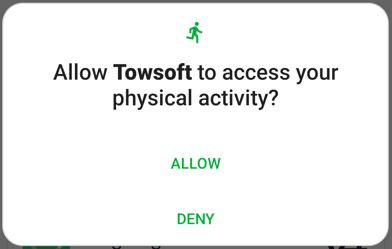
Besides, it also requires permission to access your “Physical Activity”, as this will allow the app to stop tracking your location when you are not moving in order to save battery. A saving of almost 20% of your battery will be possible thanks to this permission, depending on your use.
Here are 4 permissions that will be requested when you first connect to the application:
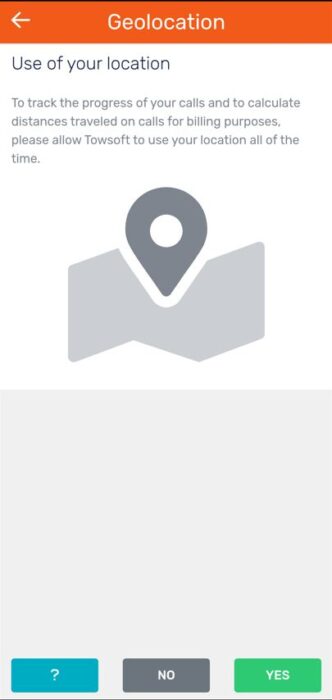
1- Geolocation disclaimer → Required by the Google Play Store to clearly inform our users on our use of their location data before requesting official access at the next step. Press “Yes”.
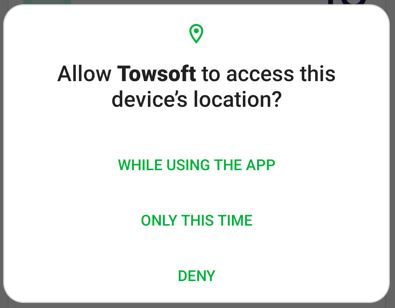
2- Authorize TowSoft to access this device’s location → Official authorization so that the app can use your location while it is being used. Tap “While using the app”.
3- Allow TowSoft to access your physical activity → Don’t think that TowSoft wants to know when you are exercising! In fact, as mentioned above, this permission will allow the app to stop tracking your location you when you are no longer in motion in order to save your battery. Press “Allow”.
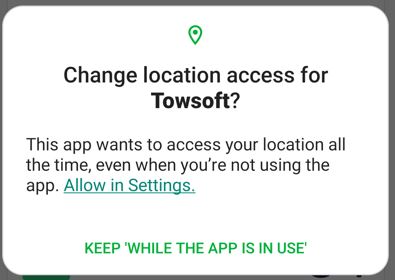
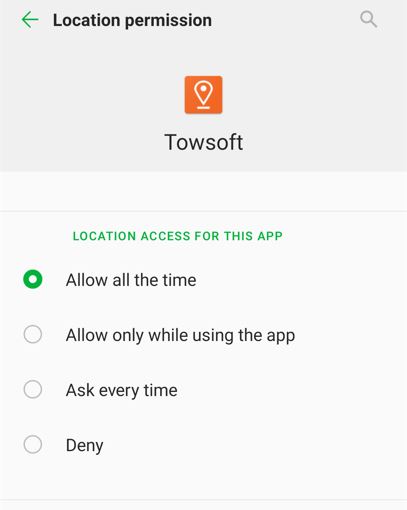
4- Allow location access. It is strongly recommended to select “Allow all the time”. Some motor clubs require this option to be enabled.
- With the “Allow all the time” option, the app records GPS points in the background if the driver is currently assigned to a call.
- With the “While Using the App” option, the only GPS points reported are when the app is opened and when the call status changes, which does not allow for trip tracking.
By default, the phone should use precise location tracking. It is important to leave this option enabled, otherwise the GPS points may differ by several kilometers.
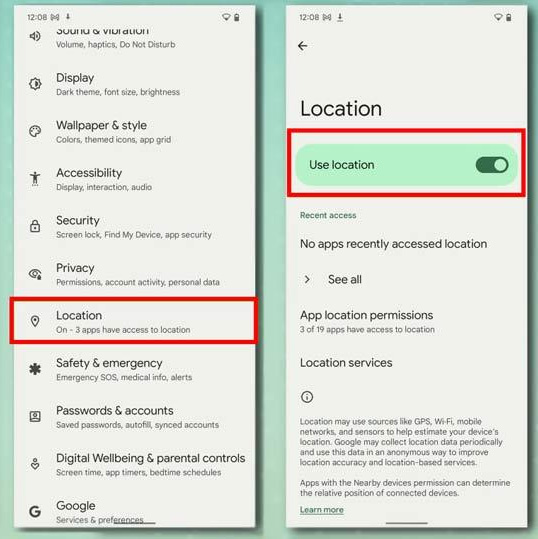
[ATTENTION] There is also a main switch (Settings > Location) where the sharing of your location/position for your mobile device IN GENERAL, i.e. for all apps that want to use it, can be managed (see screenshot below). If access is not also provided there, positions will not be reported whether you have allowed the apps to access them or not.
https://support.google.com/accounts/answer/3467281?hl=en
And 2 more permissions that you will be asked for when you add photos for the first time:
CAMERA PERMISSION

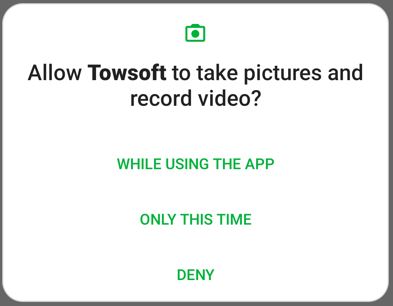
In order for you to take photos with the app and attach them to a call, the app needs access to your camera.
PERMISSION FOR PHOTOS AND MEDIA

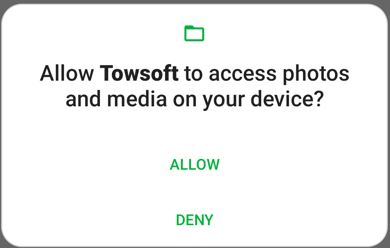
To allow you to browse photos that are already saved in your phone memory and upload them in a call, the app needs to access your media files.
PROBLEMS WITH PERMISSIONS AND NOTIFCATIONS…WHAT TO DO?
PERMISSION ISSUES
The permissions discussed above should all have been requested either the first time you use the app or the first time you attempt to take or upload photos. However, if your phone hasn’t requested you for these permissions, for whatever reason, you can still do it manually.
Go to Settings> Apps or Applications> (optional steps on some models) App Info
Then, go to select the TowSoft application and, then, click on “Permissions”.
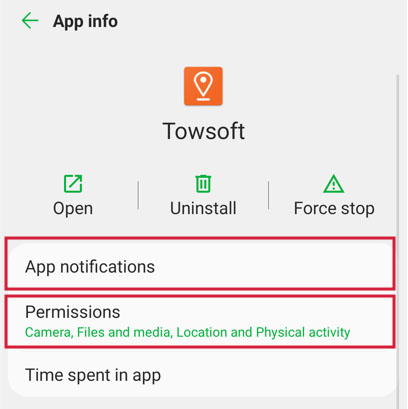
From there, you can give the required permissions manually.
NOTIFICATION ISSUES
Notifications should have been turned on automatically when you first downloaded the app, but you may still experience issues afterwards for all kinds of reasons.
Here’s what you should do if you don’t receive notifications from the app:
1- Make sure you are well connected to it (ie. not logged out).
2- Make sure your phone is not in “Do not disturb” mode. This could prevent the app from pushing notifications to your device. Consult the following link: https://support.google.com/android/answer/9069335?hl=en
3- Make sure that notifications are not disabled at the application level. To do this, use the same path as specified above in the application settings, but instead of “Permissions”, tap “Notifications” and then make sure all notifications are enabled for TowSoft.
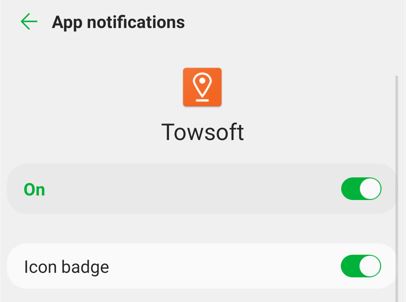
So there you have it, that does the trick!
Hopefully, you can find the solutions to all your permissions and notifications issues with the Android app in this lesson.
List of comments