

In this lesson, we show you a more convenient way to view your Standby and Scheduled Calls
Objectives of the lesson :
- Know how to access the calendar view
- Understand why calls are displayed a certain way
- Know how to use filters and navigate
WHY HAVE A CALENDAR VIEW?
As a dispatcher or administrator of a towing company, you often have to schedule calls that will be performed on a later day. Sometimes you decide to dispatch them immediately to a driver, and other times you prefer to wait before doing so.
The calendar view allows you to have an overview of the scheduled calls during a specific week, of their priority level and of their dispatch status. This way, you will be able to make your decisions more quickly and easily in some circumstances.
You might also find this view useful for Standby calls for the current day.
It’s up to you to see how you like to use it!
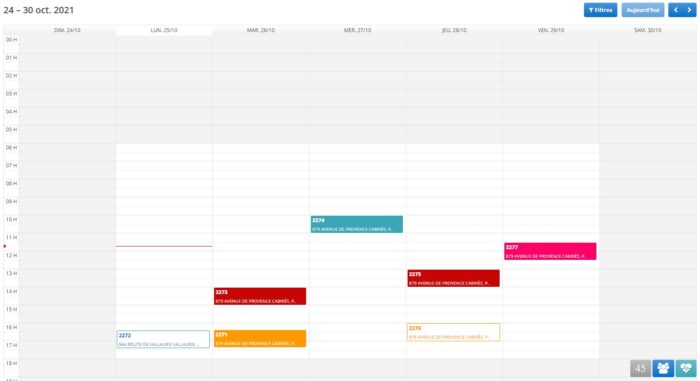
Example of the calendar view
HOW DO I ACCESS THE CALENDAR VIEW?
Whether you are in the “Standby” calls or in the “Scheduled Calls” screen, you will see the button shown below in the upper right corner of the table. Click on this button and you will access the calendar view.
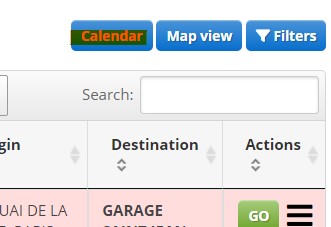
Calendar view button
HOW ARE THE CALLS DISPLAYED IN THE CALENDAR VIEW?
Obviously, the calls are displayed in the calendar view according to the date and time when they are scheduled. However, you will also find that sometimes the blocks are displayed in different colors.
The colour used for the block depends on the configuration of your Priorities in Settings > Companies and options > “Priorities” section
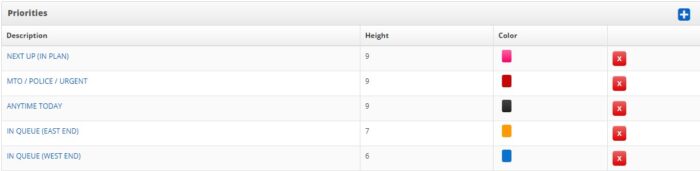
Table of priorities in TowSoft
When creating the call, the choice you make in the “Priority” field (displayed below) will therefore determine the colour in which the block of the call will be displayed in the calendar view. This will be displayed according to the settings you have configured beforehand.
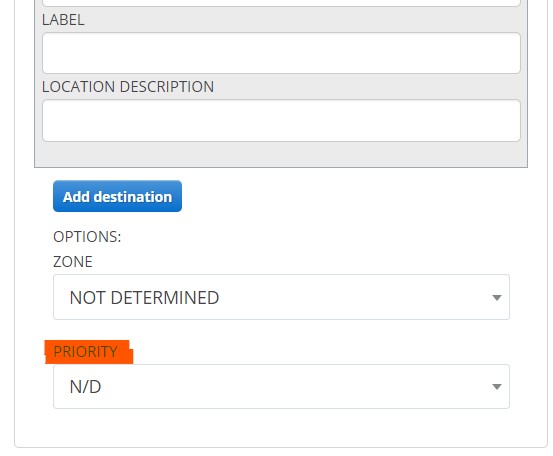
Choosing a priority when creating the call
Also, if the call block displayed on the calendar is filled in color with the text in white, this indicates that the call has already been dispatched. If the block is white, but its outline and the text contained in it are displayed in the color set for the priority of the call in question, this indicates that the call has not yet been dispatched.
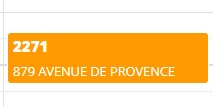
Dispatched call, in the calendar view
 Call not dispatched, in the calendar view
FILTERING CALLS AND NAVIGATING IN THE CALENDAR VIEW
BROWSE THROUGH THE WEEKS
To browse the calendar from week to week, use the arrow buttons below which are located in the upper right corner of the calendar.

Browse through weeks / come back to today, in the calendar view
If you are moving forward through the next few weeks and wish to return to the current week, click on the “Today” button.
FILTER THE CALLS
Use the filter button and check one of the three parameters to filter, that is either Company, Driver or Truck, then select the options you want to display and click “Apply”. You will thus have a filtered view of calls according to the specified criteria.

Button to filter calls in the calendar view
GET A SNAPSHOT OF A CALL
Simply click on the call block in question and the block below will be displayed.
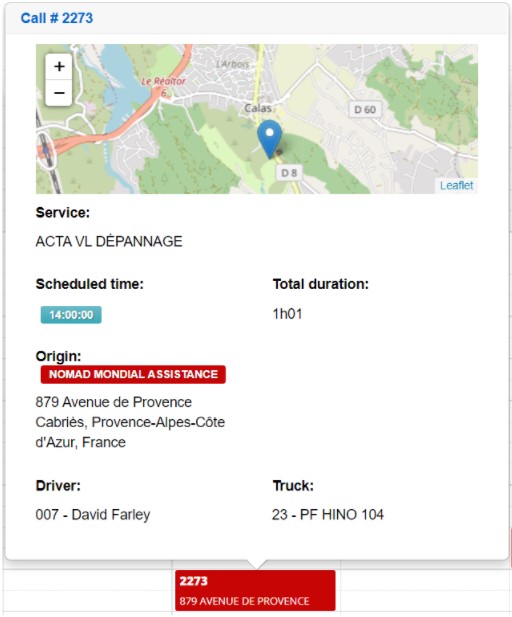
Call snapshot in the calendar view
You can also click on the call number in the upper left corner of the window to access, in a new window, the call sheet.
Move standby or scheduled calls to another slot of time

“Drag & Drop” calls in the calendar view
To move a standby or a scheduled call in the calendar, click on it while keeping your finger pressed on your mouse, then move it to another moment in the calendar. Note that for the calls that you wish to move to a sooner time in the calendar, this feature will only allow you to advance it, at the earliest, to the current time of the current day. Of course, you can’t move it to a time that is in the past, that goes without saying.
List of comments