

Understand the HOOK/UNHOOK feature to keep track of the position of your assets when they are sent to different places.
Objectives of the lesson :
- Understand why the HOOK/UNHOOK feature was developed
- Understand the pre-requisites before enabling the feature
- Be able to use the HOOK/UNHOOK feature (admin, dispatch, driver)
WHAT IS THE HOOK/UNHOOK FEATURE?
Since TowSoft is a versatile software that can be adapted to different types of applications, such as transportation of machinery or containers, the HOOK/UNHOOK feature was built to allow you to leave some of your equipment at a place, and keep traceability of its location until you take it back from that place.
Ex:
1- You create a call to carry equipment #45 to a location. Once there, you “UNHOOK” equipment #45, then you return to base.
Meantime, you can check where equipment #45 is located in your TowSoft .
When this equipment is ready to get picked up, you go get it.
2- You create a call to pick up equipment #45 where it was left. Once there, you “HOOK” equipment #45 to bring it back to the base.
Basically, it allows you to know at all times where your important assets or equipment are located, without having to pay for pricey GPS tracking devices.
HOW TO ACTIVATE THE HOOK/UNHOOK FEATURE?
You will first need to create all the equipment for which you want to use the HOOK/UNHOOK feature by going to the Trucks and trailers/trailers section in the left menu, then clicking on Add a trailer/trailer in the upper right corner of the screen

Button to add a trailer
Once the equipment is added in TowSoft, you can request the activation of the feature to the TowSoft support team at support@towsoft.ca (can take up to 5 business days). Once the feature is activated, you will be notified by our team.
HOW IT WORKS ?
UNHOOK
You create a transport call that goes from base to origin. When you dispatch, you will need to select the driver, the truck and the equipment in question in the trailer/trailer field.
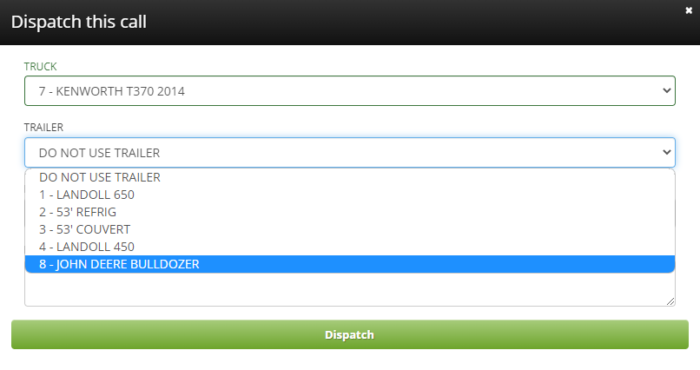 Selecting a trailer (equipment) when dispatching a call
If the equipment was properly added in the previous step, you should find it in the list.
After changing the call’s status to On Scene, the driver to whom the call was dispatched will see the UNHOOK option appear in the app’s actions menu.
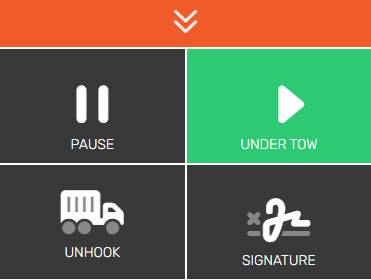
UNHOOK option, in the actions menu
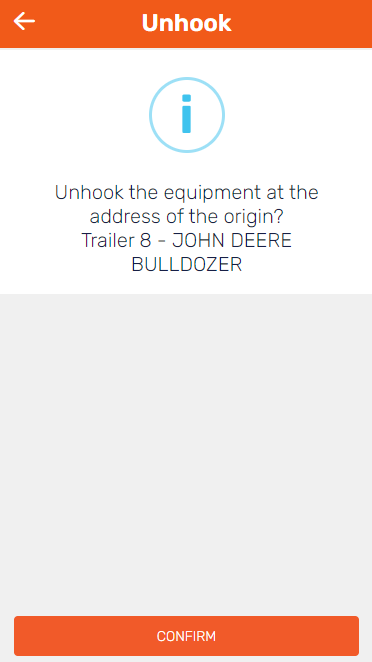
UNHOOK equipment on a site (confirmation)
He will have to select the equipment in question, then confirm, and complete his call.
By doing so, the equipment’s UNHOOK location is saved.
TRACEABILITY
Option 1 – Any equipment that has been left somewhere (ie. in the UNHOOKED status) can be located in the “Active Trailers” table.
- Hooked/Unhooked-> Indicates whether the equipment in question is in the “UNHOOKED” status.
- Call -> If the status mentioned above is Unhooked, this column indicates the call via which the equipment was left on a site.
- Location -> If the status mentioned above is Unhooked, this column indicates where the equipment was left.
- Date -> If the status mentioned above is Unhooked, this column indicates the date oon which the equipment was left on site.
- Hook -> Button to reset the equipement to the “Hook” status, at any time, therefore listing the equipment as being back at the base.

HOOK/UNHOOK feature, in the Active Trailers tab
Option 2 – In the left menu of your TowSoft, click on Geolocation. In the window with a map view that will open, select the Trailers/Trailers filter and you will have an overview for all the equipment that has been UNHOOKED in different places.
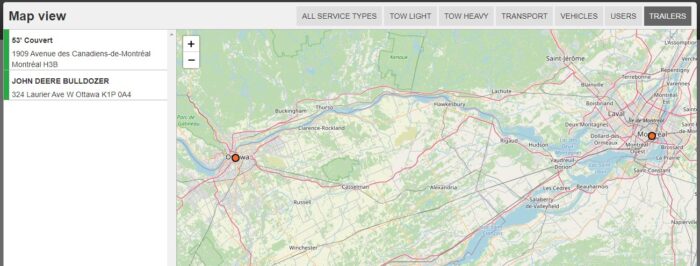
Map view of UNHOOKED trailers (incl. equipment & other assets)
HOOK
You create a call with any transport service in order to bring back equipment. You dispatch the call to the driver who gets to the pick up location. After the driver is at any call status after “On Scene”, the HOOK option will appear in the actions menu.
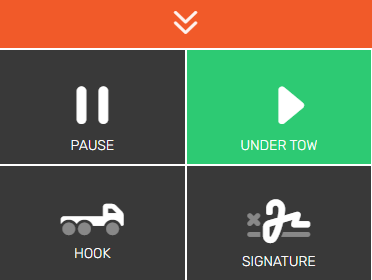
HOOK option, in the actions menu

HOOK equipment (confirmation)
The driver must press the button and then select the equipment to be taken back.
Once the equipment is hitched, TowSoft considers it “back to base” and will stop keeping track of its position. From this moment, the equipment can therefore be sent on another call when dispatched, in order to be left somewhere else (UNHOOKED).
List of comments