

In this lesson, we show you how to set up obligations or warnings to help with the full documentation of calls.
Objectives of the lesson :
- Be able to configure obligations and warnings appropriately according to different situations.
HOW TO ACCESS ?
When you are in the back office version of your TowSoft, in the menu on the left of the screen, click on “Settings”. You will see the option “Obligations” inside the drop-down menu that will appear.

When you click on “Obligations”, the window below will appear. Please note that the obligation you see is only an example.

What appears in the “Obligations” tab are the obligations and warnings that are in effect in the TowSoft system at this time.
What appears in the “Disabled” tab are those that are not in effect.
CREATE AN OBLIGATION OR WARNING?
Add an obligation or a warning -> Click on the “+ Add” button at the top right corner of the window. The other window below will appear.

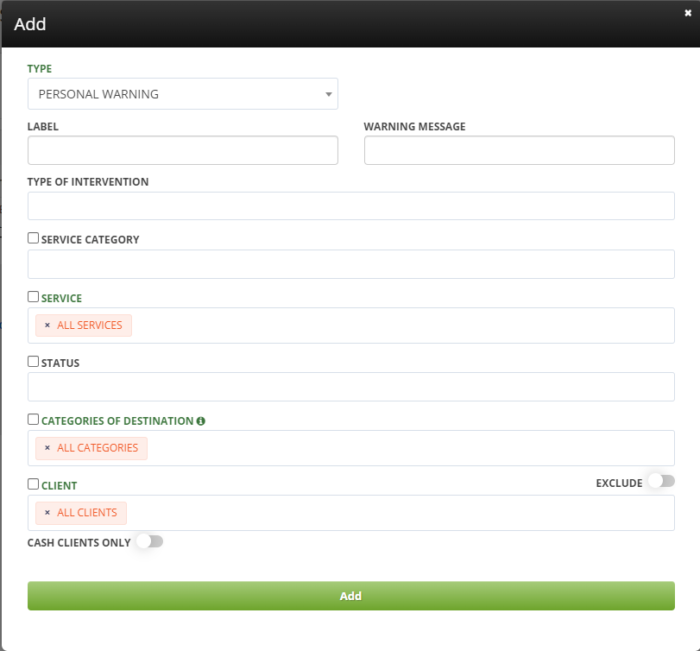
Type of obligation -> Select from the list of pre-established choices the obligation you want to add or “Personal warning”, if it is something that is specific to your way of doing things.
If you choose “picture” here, you will also be asked to specify the quantity of pictures to be taken.
Attribute -> You will not see this field if it is a “personalized warning”, but for any other type of obligation, you will have to choose here if the information is required or if you only want to warn the operators.
Label -> Write in this field the title that will be displayed for the obligation or warning to the operators.
Warning text -> Write in this field the full warning you wish to give.
Nature of the intervention -> Select the intervention(s) for which the system must show them.
Service Type -> Select the types of service for which the system should display them.
Status -> Select at which call status(s) the system should show them.
Categories of destinations -> Select the categories of destinations for which the system should display them.
Client -> Select for which client (s) the system should display them.
For any call that meets the criteria defined above, the operator will therefore see this obligation or warning through the various call statuses specified.
As an example, here’s how an obligation would show up in the TS4 mobile app when the driver changes the call status and the configured criteria are met:

Modify or deactivate an obligation or a warning
Click on the “…” button in the “Action” column of the obligations table and choose what you want to do.

STRICT PHOTO REQUIREMENT MODE
If this option is enabled, mobile users will need to take the pictures right before the status selected in the obligation.
This prevents drivers from skipping the picture requirement if they added multiple photos at a prior step in the call.

You can also setup multiple photo obligations at different statuses.
List of comments