

In this lesson, we will cover the function of scheduled dispatches in TowSoft.
Objectives of the lesson :
- Know how dispatch scheduling works and under what circumstance you should use it
- Know how to schedule a dispatch
- Know how drivers will see the scheduled dispatch and how they will get notified
WHO SAYS SCHEDULED CALLS, SAYS SCHEDULED DISPATCHING…
As discussed in the “Scheduled Calls Screen” lesson, TowSoft users who get specialized transport or machinery transport jobs that need to be done at a later date can schedule the call in advance. And while you are it, we felt it would be great to be able to schedule the dispatch of the call to a driver / truck / trailer as well.
This way, you can “reserve” the staff members and equipment that you deem most qualified for the job, so that they don’t get assigned to another job.
All in all, this is simply going to allow you to better plan your operations.
HOW TO SCHEDULE A CALL DISPATCH
First, to be able to schedule the dispatch of a call, the call itself obviously needs to be already in the “scheduled status”. That said, it is only from the “Scheduled Calls Screen” or from the “Call Details Screen” of a scheduled call that you will be able to perform this operation:
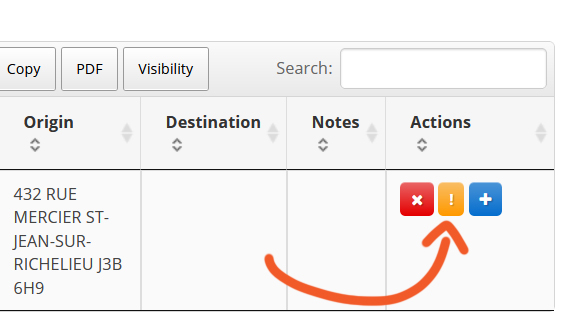
Schedule the dispatch from the Scheduled Calls screen
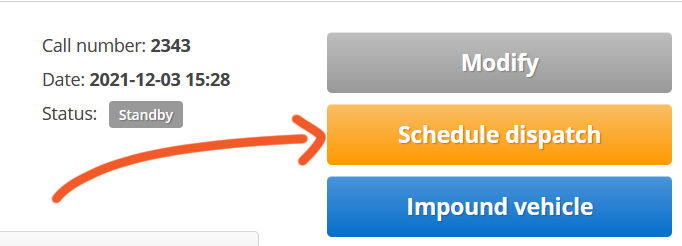
Schedule the dispatch from the Call Details Screen
Whichever way you decide to use to do it, the following window will open when you click on the button.
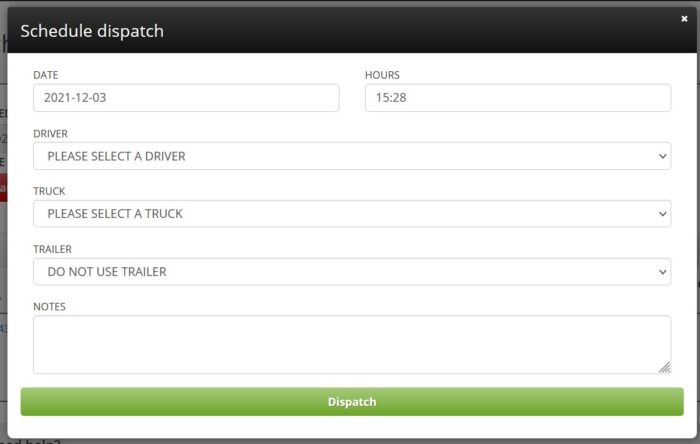
Schedule dispatch window
Here are the details of the fields that need to be filled in:
Date & Hour -> Date and time at which you want the call to be dispatched.
Driver, Truck, Trailer -> Employee and equipment that you want to assign to this call (and reserve).
Notes -> Notes that you can add so that drivers (and dispatch or admin) can consult them in the call details. They will only be able to see these when they actually accept the call.
Once this is complete, just click on the “Dispatch” button in green at the bottom you don’t have to think about it anymore. The call will get dispatched when the time comes.
HOW YOUR DRIVERS SEE THEIR SCHEDULED CALLS AND GET NOTIFIED
As mentioned in the “Dashboard overview – TS4 mobile app” lesson in the Driver Training, drivers will be able to see their scheduled calls from the dashboard in the mobile app.

Number of scheduled calls, from the TS4 mobile app dashboard
When they click on this, they’ll only be able to see the overall details as well as the date & time on which the call will get dispatched to them. They will NOT be able to accept it immediately.
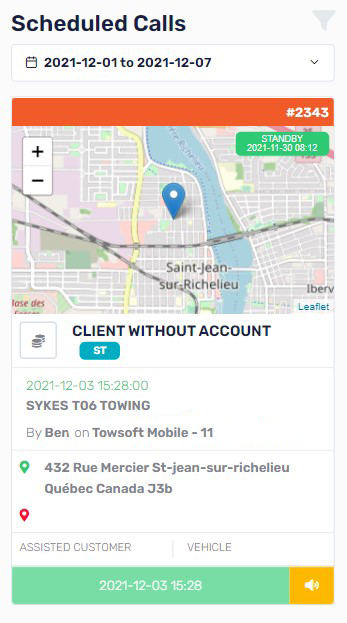
List of scheduled call, from the TS4 mobile app
When the time at which you scheduled the dispatch comes, drivers will get a notification on their mobile, as is normally the case any other type of call. The call will therefore go from the Scheduled Call status to Driver Standby (when it is dispatched) to Ongoing (when it is accepted by the driver) in the TS4 mobile app dashboard.

New call notification, on the TS4 mobile app
List of comments