

In this lesson, we explain the coverage feature which allows to automatically split the invoice when a max. coverage is reached on a call.
Objectives of the lesson :
- Understand the concept of client coverage for a call
- Know how to configure a client as a "MOTOR CLUB" in order to enable coverages
- Know how to set coverage when creating or modifying a call
WHAT ARE COVERAGES AND WHEN YOU SHOULD USE THEM
TowSoft can automatically manage the splitting of invoices when a max. coverage is set for a service provided on behalf of your roadside assistance/motor club clients. By coverage, we mean the max. amount (tx. incl.) that you will be able to bill to a client account for a call, thus leaving an excess amount to be billed directly to the customer on the road, if any.
HOW TO ENABLE COVERAGES FOR A CLIENT ACCOUNT
In order to be able to set coverages when you create calls for a client account, it must first be configured as a client of the “CAR CLUB” type in its settings. In order to do so, you must ask your administrator to check the box below when they edit clients in the Client Zone:
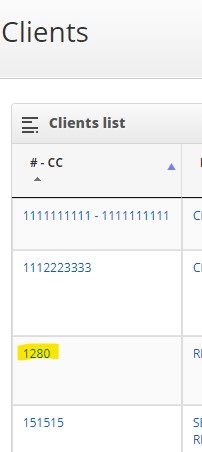
Click on the number in the CC column
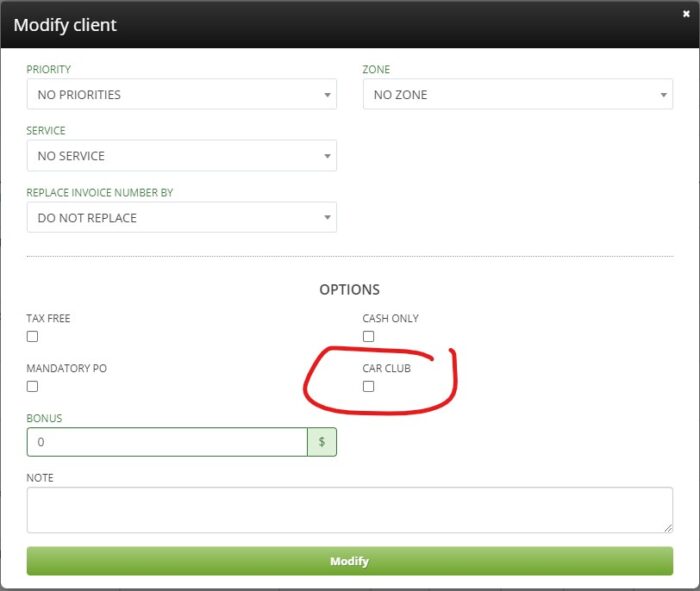
Client account settings
Any company that is using the XLite version of the software will not see these options as they are not included in their plan.
HOW TO ADD A COVERAGE WHEN YOU TAKE A CALL
Once this is done, as soon as you select a client of this type in the following field of the call taking form:
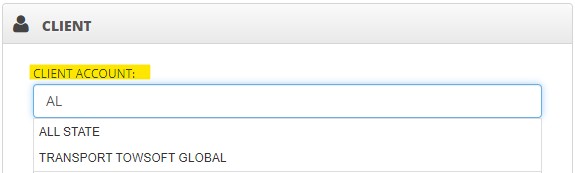
Selecting a client when taking a call
These fields will appear in the ORIGIN / DESTINATION section and you will be able to input the covered amount (tx. incl.) and distance.
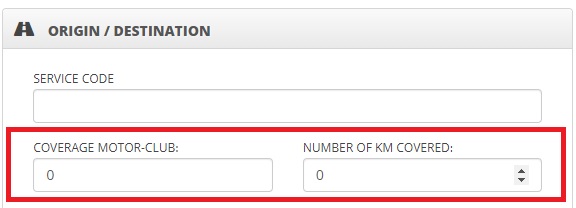
Coverages that can be detailed when taking a call
If none apply for the service to be provided, these fields can be left blank.
HOW TO ADD A COVERAGE WHEN YOU MODIFY A CALL
In case you forget to add the coverage when taking the call, it is possible to add it later by modifying the call. However, this will obviously have to be done before the call is finished, otherwise it will be difficult for your drivers to collect the additional amount from the customer on the road.
Here’s how to add a coverage by modifying the call:
- In the buttons to the right of the call sheet, click on “Modify”

Modify a call
- In the window/form that will appear, scroll to the bottom of it to find the fields “COVERAGE MOTOR-CLUB” and “NUMBER OF KM COVERED”
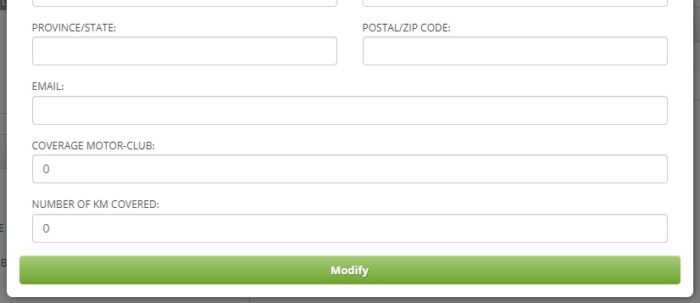
Adding coverage when modifying a call
- Enter the coverage, then confirm everything by clicking on “Modify”.
THE IMPLICATIONS OF A CALL WITH COVERAGE…
- The driver will be notified on his mobile when the coverage is exceeded upon arrival on site, then will be asked to charge the excess to the customer on the road.
- Another call will be automatically created and attached to the main “covered” call and will contain the additional invoice.
- The invoice for the main call will be sent to the client account and will add up to the covered amount.
List of comments