

Learn how to enable and use subcontracting in TowSoft
Objectives of the lesson :
- Know how to activate subcontracting
- Be able to connect to & configure subcontracting partners
- Understand how to sucontract a call in TowSoft and how the subcontracted call on both sides.
WHAT IS SUBCONTRACTING AND WHY WAS IT ADDED IN TOWSOFT?
Subcontracting, or in other words, sending work to partners, is a common practice for our clients, especially when it comes to transportation jobs. That’s why we thought of a way to integrate it, so that our clients can easily send work to each other through our software. This will allow a completely digitalized transfer of the call details and documents by both parties, as well as to track the execution of the call by the contractor.
HOW TO ACTIVATE SUBCONTRACTING IN YOUR TOWSOFT??
First, be aware that all your drivers must be using the TS4 version of the TowSoft mobile app to use subcontracting.

To activate subcontracting, all your drivers must use the TS4 mobile app
It is a prerequisite. If you meet this condition, then submit your activation request to our technical support team by writing to support@towsoft.ca. We should be able to perform this activation fairly quickly.
HOW TO SEND A CONNECTION REQUEST FOR SUBCONTRACTING?
ACCESS THE SUBCONTRACTING SECTION
First of all, note that the activation of the subcontracting discussed in the section above must have been done, both on the side of the contractor and on the side of the subcontractor who wants to receive work before a call can be sent from one to the other. Once this is done, you will need to go under Clients Zone in the left menu and click the Subcontractors option to access the section.

Subcontracting section, accesible under the Clients Zone menu option
In the table that appears, you will see the three tabs Active subcontractors, Inactive subcontractors and Contractors at the top. If you have not yet attempted to add a subcontractor or accepted a subcontracting request, this table will obviously be empty.
ADD A NEW SUBCONTRACTOR
In the upper right corner of the table shown above, click on the “+Add” button, then the window for adding subcontractors will appear.

Button to Add a new subcontractor

Add a new subcontractor window
Enter the first two letters of the company name of the subcontracting partner you wish to add and you will be shown results among all TowSoft clients who have already enabled the subcontracting feature, as covered in the second section of this article.
If you can’t find your partner, check with your contact who works there that you are using the correct name to find them (registered company name in TowSoft).
Once the name of the partner is selected, the complete address should appear below so that you can validate that it is indeed the correct company. If that is the case, then click on the “Add” button at the bottom of the window and this will automatically send a connection request email to the email address of the main administrator of this company. In the meantime, the status of the subcontractor in the table will be “Pending”.
CONNECTION REQUEST FOR SUBCONTRACTING PURPOSES
When your connection request is made, this is the email your subcontracting partner will receive:
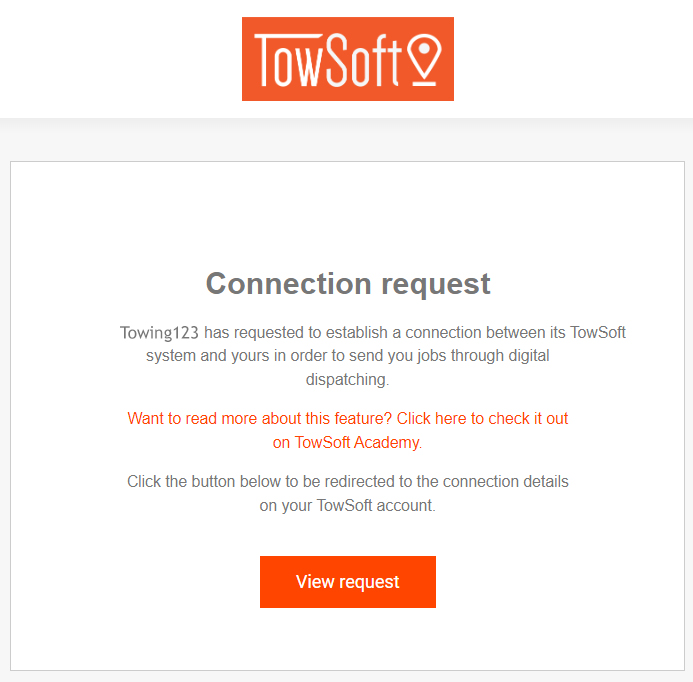
Subcontracting Partner Connection Request Email
By clicking on “View request”, the administrator at the subcontractor will be redirected to his TowSoft and the window below will appear. He must then specify, if necessary, a customer account (general ledger) to which the calls done for the contractor must be associated, as well as assign a status to the connection request. Unless they need to ask someone and set the status to “Pending” before accepting it, the contact should normally accept this connection request.

Connection request acceptance window (by the subcontractor)
Regardless of the response that the subcontractor gives to your connection request, you (as the contractor) will be informed by email of this response and will be able to consult in your subcontracting section the status that the subcontractor has given to the connection request (Pending, Denied, Accepted).
If it is is accepted, you can then start sending calls to your partner, since your TowSoft systems will be connected.
HOW TO SEND AN CALL TO A SUBCONTRACTING PARTNER?
Once a connection is established (Statut show Accepted) with a subcontractor, you will notice that a new “SUBCONTRACTOR” tab will be available in the typical dispatch window you are used to.

Subcontractor tab in the call dispatch window
From this tab, you will need to specify who you want to send the call to among your connected subcontractors, add any instructions that will be visible to the subcontractor’s dispatcher, and then select the files to send to the subcontractor. If no file has been attached to the mission, this section will obviously be empty, but be aware that it will be possible to send any file added later in the through the call details screen to the subcontractor.
[IMPORTANT] This will seem obvious to some, but before sending a call to your subcontracting partner, contact them first to check on their availability.
HOW SUBCONTRACTED CALL WILL APPEAR IN TOWSOFT?
FOR THE SUBCONTRACTOR
Once the contractor has sent the call to his subcontracting partner, the latter will see it appear as a new call in his TowSoft and he will have the choice to accept or refuse it.
If a prior check is always been made with the subcontractor to make sure of his availability to handle the call, refusals will obviously be very rare.
* Note that the client’s information and the contractor’s internal notes will at no point be visible in the call details for the subcontractor.
Once the call has been accepted, it will be in the table of Standby calls and must be dispatched to a driver. An orange label with the word “SUBCONTRACTING” in the P.O. column will also clearly indicate that this is a call that has been subcontracted.

Label indicating that a call was subcontracted in the P.O. column of call tables
Again, neither the client details nor the contractor’s internal notes will be visible to the subcontractor.
Once the subcontractor dispatches the call to one of its drivers, the call must be carried out as usual. The subcontractor will be able to modify the basic details of the call such as the vehicle or the load info, the addresses and these modifications will be synchronized in the TowSoft of the contractor.
FOR THE CONTACTOR
Once the call has been dispatched to the subcontractor, it will then appear in the Ongoing calls table and it will remain in the “Dispatched” status until it is completed AND verified on the subcontractor side. When the latter happens, it will move in the “To validate” table in the contactor’s TowSoft and will be in the “Complete” status.
HOW CAN FILES BE SHARED?
It is common practice for the contractor to want to send files to the subcontractor and vice versa. In addition to the possibility of sharing files at the moment of dispatching the call to the subcontractor, the files that are added later from the call details screen or from the driver’s mobile, whether they are photos, videos or documents can be sent individually.
As soon as a new file is added to the call, (i.e. a file that has not already been sent to the other party), you will notice that the green button below will appear on the right of the call details screen.


Buttons to send files to the other party, from the call details screen
By clicking on it, you will be able to select from the newly added files which ones you want to send.
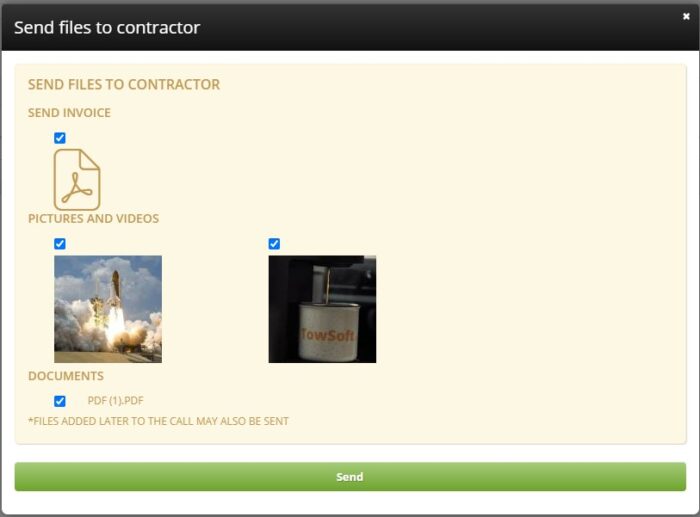
Window from which to select files to send to the other party
As a result, this will be synchronized in the calls details screen on the side of the other party.
List of comments