
Learn all about the SMS and Robocall Module
Objectives of the lesson :
- Learn how to activate the module
- Understand and be able to configure the different option according to your business needs
- Properly manage your balance of credits
- Be able to configure automatic sending of SMS to beneficiaries in specific situations
ACTIVATION OF THE MODULE
First, please note that you need to make a request to our support team (support@towsoft.ca) in order to activate this module. Once our team has activated it, you will be able to find the new “Paid Notifications Options” button in Settings > Company & options.

Paid Notif. Option Button, from where you can manage the configurations of the module
WHY THE SMS & ROBOCALL NOTIFICATIONS ARE A PAID FEATURE?
In order to be able to send those notifications from the system, TowSoft has to pay for the services of a third-party supplier. For that reason, as you will be able to read later, we needed to build a credit purchasing system for our clients to use the feature as this would allow us to cope with the cost incurred from the supplier in question.
ENABLING PRODUCTS FOR THE COMPANY
After clicking on the button discussed above, you will first need to enable the product that you want to allow for the company.
- SMS only
- Robocalls only
- SMS & Robocalls
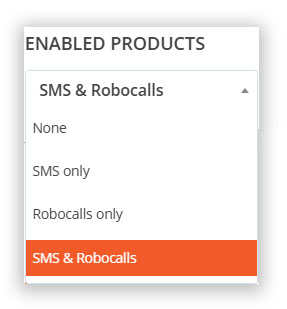
Enabled products – SMS & Robocall Notifications
- SMS notifications can serve for customers and employees.
- Robocalls can only serve for employee notifications.
CONFIGURING THE TYPES ON NOTIFICATIONS THAT ARE ALLOWED
SMS NOTIFICATIONS TO ON-SITE CUSTOMERS
After choosing the products to enable, you should see some or all of these options depending on the modules that are activated in your TowSoft.

SMS to customers, options
First, please note that the SMS options discussed above will only appear when a valid phone number is configured for the customer.
- Driver on route notifications
Permission to send an SMS in order to notify the on-site customer when the driver accepts the call. When enabled, this feature will appear on the call creation screen, in the CLIENT section. Note that it is also possible to configure this notification in the client’s settings, so that the box is checked by default for any call that is done for this client.

Checkbox to send a driver en route SMS when creating a call
- Geolocation requests
Permission to send an SMS so that the on-site customer can click a link and send his GPS coordinates (latitude, longitude). These coordinates will then be inserted into the call, as the scene location/address.

Checkbox to send an SMS to geolocate the customer when creating a call
- Motor club order accepted notifications
Permission to send an SMS to notify the on-site customer when you accept the E-dispacted order from the motor club. As a second step, this notification must also be enabled in the settings of a client, by checking the “SMS CUSTOMERS WHEN CALL IS ACCEPTED”* box. In the left menu, go to Customer Area > Clients > Click on the wheel to the right of the client’s name), and locate the box in question.
* PRE-REQUISITE: The box will only appear is the motor club is properly configured for Edispatch.

Checkbox in the client settings, so that an SMS is sent to the customer when an order from that motor club is accepted
- Satisfaction surveys
Permission to send an SMS so that he/she can click a link to a satisfaction survey created in TowSoft. Ask our support team for more details on the satisfaction survey module in TowSoft.

Sending a survey via SMS in the call screen, from the desktop

Sending a survey via SMS in the call actions menu, from the TS4 mobile app
- One-off messages (free text or pre-configured)
Displays a button in the desktop call screen or action menu of the call on mobile, allowing you to write a custom message or send a pre-written message to the on-site at any time.

Sending a one-off SMS to the customer in the call screen, from the desktop
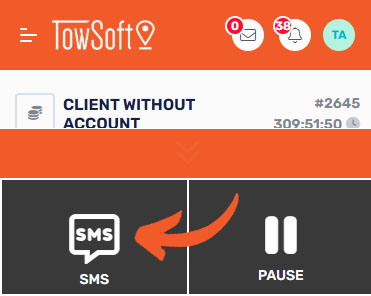
Sending a one-off SMS to the customer in the call actions menu, from the TS4 mobile app
- Sending invoices, payment requests and receipts
Permission to send an SMS so that the on-site customer can click a link to the invoice (or receipt if invoice is already paid). It should be noted that customers using an integration with a payment gateway will also be able to allow the on-site customer to pay the invoice amount by entering their payment details on their own mobile device.
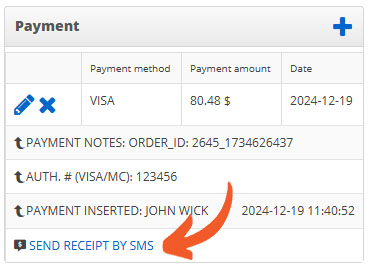
Sending a receipt by SMS, call screen, via desktop

Sending a receipt by SMS in the call actions menu, from the TS4 mobile app
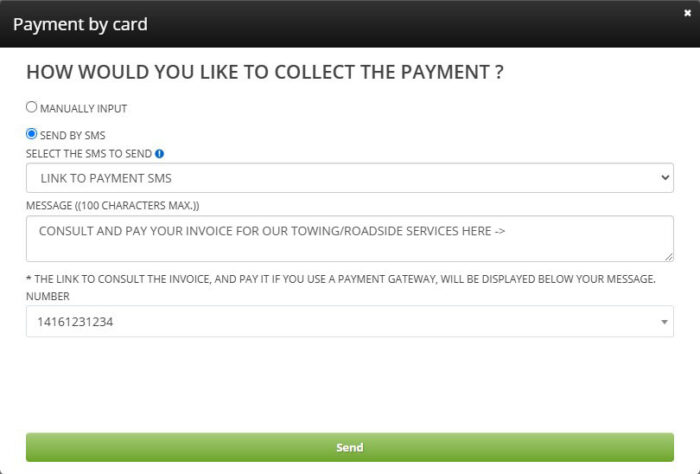
Request for “Payment by Card” in the call screen on the desktop, option to send the payment request via SMS
*Option available only when an integration with a payment gateway is configured
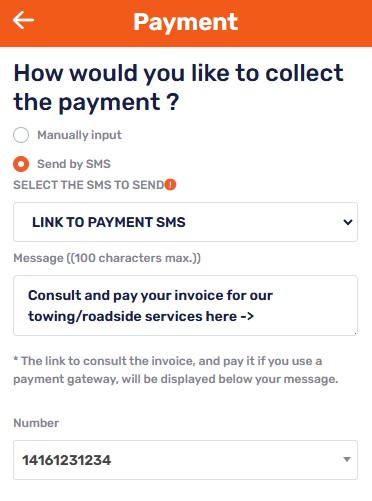
In the Billing tab of the TS4 call sheet, after clicking on “Pay”, then selecting
a credit card, the option to send the payment request via SMS
*Option available only when an integration with a payment gateway is configured
- SMS Automations
Programming the sending of specific SMS messages at a specific time and according to a specific context (e.g. client, service, call status, etc.). See the section below to understand how to use it.
SMS & ROBOCALL NOTIFICATIONS ACCORDING TO ROLES

Types of notification allowed for roles
- RECEPTION OF A NEW ORDER
Notification when getting new orders directly in your TowSoft from your clients (Edispatch & Intranet).
- ORDER CANCELLED DUE TO EXCEEDED RESPONSE TIME
Notification when a motor club order is cancelled due to taking too long to respond to it.
- ORDER CANCELLED DUE TO ANY OTHER REASON
Notification upon cancellation of a client order for any reason other than that specified above.
- CALL DETAILS UPDATED BY MOTOR CLUB
Notification when call details are updated by a motor club.
- ALL CALL DISPATCHES (SUPER ADMIN ONLY)
Notification when any call is dispatched. BE CAREFUL, this represents a lot of notifications and consumes a lot of credits.
- REMINDER OF ORDERS (NOT YET ACCEPTED/DISPATCHED/ON ROUTE)
Notification when a call is not yet accepted/dispatched/on route after X minutes. This delay can be configured in Companies & options > Call options button > Reminder notifications.
- RECEIVING A CALL TO DO IMMEDIATELY AS DRIVER
Notification when a call to be done immediately is dispacthed to users with this role.
- END OF WORK SHIFT REMINDER
Notification to alert users that their shift is over. PLEASE NOTE that the time punching option must be enabled for your company. If it is not, you must request it from our support team (support@towsoft.ca).
- CALL REASSIGNED TO ANOTHER DRIVER
Notification to alert users that one of their calls has been reassigned to another driver.
- RECEIVING A SCHEDULED CALL (TO BE DONE IN THE FUTURE) AS A DRIVER
Notification when a scheduled call is dispatched to users with this role.
* Please note that messages sent for role notifications are not customizable.
CREATING, EDITING AND DEACTIVATING SMS MESSAGES
Some of the SMS messages that are sent after enabling the options discussed above are configurable in Settings > Text Editors. From there, you will be able to edit the default messages for the Order acceptance or Driver on route SMS messages, and also add new SMS messages for the following types:

Button to add new texts (e.g. emails accompanying invoices, SMS messages)
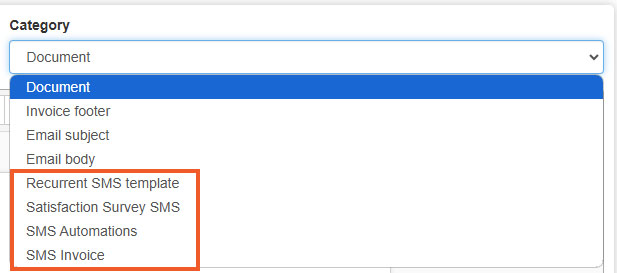
Categories of texts for SMS messages
Recurrent SMS template -> Messages saved under this category will be available in the call screen on the desktop (image #1 below) and via the actions menu in the TS4 mobile application (image #2 below). After clicking one of those two options, you will be able to either write a free text or select one of those messages by their title.
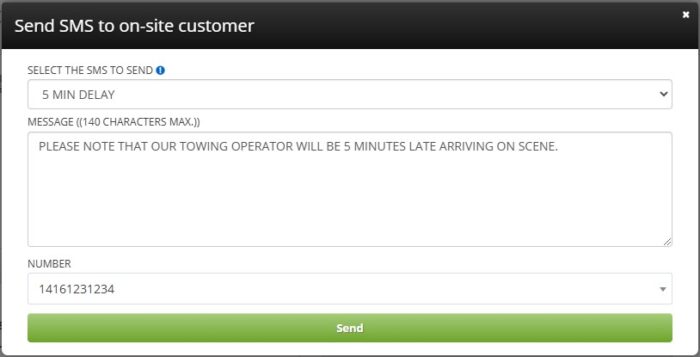
Menu in which the one-off SMS messages can be selected, via the desktop computer

Menu in which the one-off SMS messages can be selected, via the TS4 mobile application
Satisfaction survey SMS -> Messages saved under this category will be available in the call screen on the desktop (image #1 below) and via the actions menu in the TS4 mobile application (image #2 below). After clicking one of those two options, you will be able to either write a free text or select one of those messages by their title.
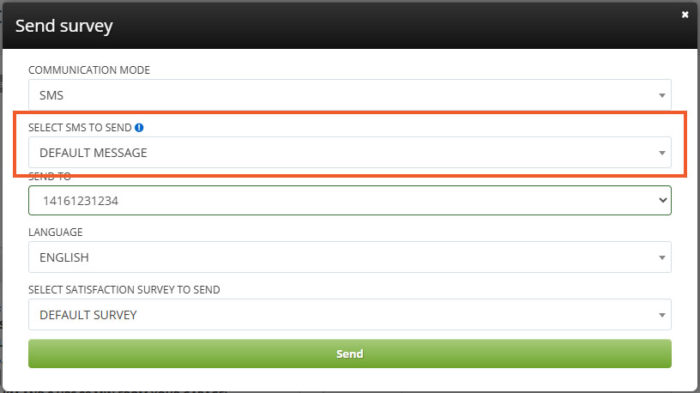
SMS to go along with satisfaction surveys, from the desktop

SMS to go along with satisfaction surveys, from the TS4 mobile app
SMS Automations -> Messages saved under this category will be available when setting up SMS automations (In the left menu, Manage Settings > SMS Automations) when you click the “+ Add” button in the upper right corner.

Field from which SMS Automation category messages can be selected
CONFIGURING SMS AUTOMATIONS
If you are familiar with the Obligations and warnings module in TowSoft, you will get the hang of setting up SMS sending automations very quickly.
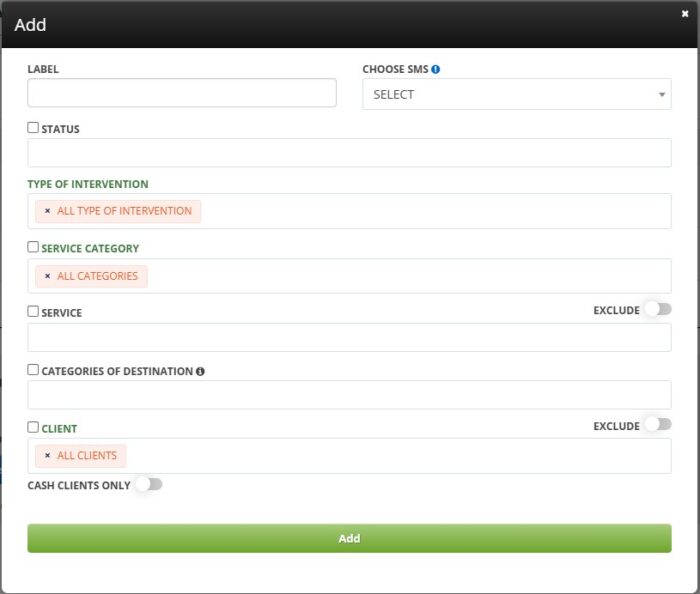
SMS automations, configuration window
This feature allows you to automatically send pre-configured SMS messages in specific contexts. Here is an overview of the different fields used to configure the situations in which SMS messages should be triggered/sent.
- Label -> Write a representative name for this automation so that you can quickly understand, among the list of other automations, what this one does. It’s up to you to find an appropriate naming system!
- Choose SMS-> Select from the SMS created under the “SMS Automation” category the one that should be sent in this situation.
- Status -> Select at which call status(es) the system should send the SMS automatically. Selecting multiple statuses would cause the same SMS to be sent multiple times during the same call.
- Type of intervention -> Select the types of interventions for which the system should send the SMS automatically.
- Service category -> Select the category of services for which the system should send the SMS automatically.
- Service -> Select the service(s) for which the system should send the SMS automatically. If the Exclude switch on the right is enabled, this will rather exclude calls with the selected services so that SMS automations are not triggered for these.
- Categories of destination -> Select the destination types (ex. impound) for which the system should send the SMS automatically.
- Client -> Select for which client(s) the system should send the SMS automatically. If the Exclude button on the right is enabled, this will exclude the selected customer(s)’ calls so that SMS automations are not triggered for these. If the Cash Clients Only switch below is enabled, the search for clients after you type some characters will be limited only to clients configured as “Cash Clients” in your system.
Examples of usage
- For all calls where the Type of intervention is “Roadside service” or “Tow”, send an SMS at the “Completed” status containing a link in order to leave a Google Review for your company and thus help the performance of your website on search engines/for cash calls.
- For all calls where the Category of destination is “Impound”, send an SMS at the “Impounded” status with a link to your website where the customer can see the address of your impound lot and the hours of access.
SMS PRICES, USAGE AND CREDIT PURCHASES
Prices are still subject to change in the future and can be viewed in your TowSoft. Top right of your screen, click on your profile icon and select the CREDITS section. In this section, you can view the current prices, your SMS usage and you can purchase more credit if needed.

Usage
In the usage section, you can see information regarding SMS sent out and credit purchases. You can filter by date if needed.
- Date
- Product : The type of SMS sent out
- Phone : Client phone number
- User
- Reference # : Call number in TowSoft
- Unit Price: Cost of the SMS sent
- Balance: Remaining credit amount for SMS
Credit Purchase
In the credit purchase, you have two options.
For the one-time purchase option, you can select an amount and it will automatically be added to your credit balance. The invoice will be sent later.
For the second option, you can enable automatic purchases of credits. When your balance reaches 5 $ the purchase amount will be added.
We recommend using one-time purchases at the beginning to make sure the SMS sent out are configured properly and that your credit balance is not being drained by a specific user or automatic messaging that you don’t need.
List of comments