

Overview of quote creation and customer acceptance
Objectives of the lesson :
- Learn how to issue quotes
- Understand how quotes are viewed, accepted or declined in the intranet portal
Required before starting: Visibility of orders for the intranet user
The customer must have an intranet account and the ability to view all orders. If permission is not granted, quotes will not be visible on the intranet portal.
The article Configure an order portal for your clients (intranet) explains how to configure your clients to use the quotes properly.
HOW TO CREATE AND MANAGE QUOTES?
Simply go to the Other service calls / Quotation section. This section provides an overview of issued quotes. Click the Add Quote button. You can also open the Take a new call page and select Quotation in the dispatch field.
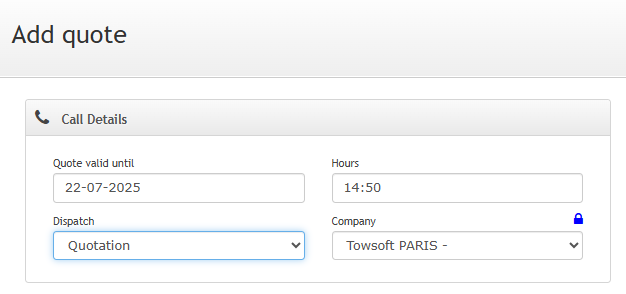
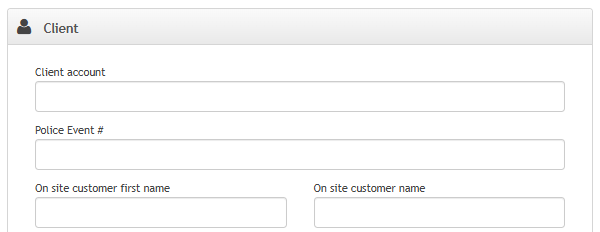
On the quote creation page, it’s important to select a client account. The quote will be associated with the account, allowing it to be viewed in the intranet portal.
APROVE OR REFUSE QUOTES
Once the quote is created, it will appear in your customer’s portal, in the list of current orders.
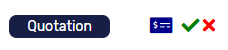
The customer can click this icon to view the quote. As in the Overview, the document number will be the TowSoft call number, and your service charges will be visible.

The client can then accept or decline the quote. A confirmation window will be displayed.

Once the quote is accepted, the call in TowSoft will be in your Standby section.
It is also possible to accept quotes in your TowSoft if you already had a conversation with your client. Go to Other service calls / Quotation and open your quote. You can approve the quotation on the call page.

QUOTE LIST AND CANCELATION
In your TowSoft, you can find your quote list in the section Other service calls / Quotation . If the quote is not confirmed, you can cancel it. When the quote is approved by the client, the call will appear in the Standby section.
List of comments